

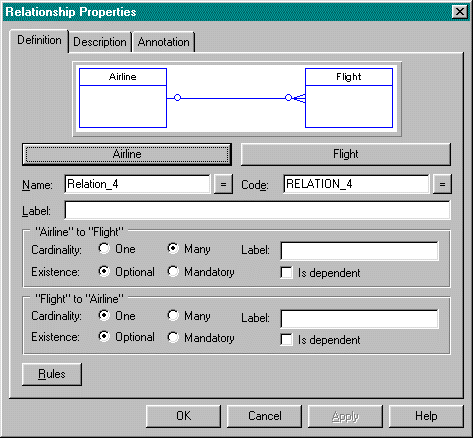
Every relationship drawn
on a CDM has its properties defined in this Relationship Properties
dialog box. The upper section presents an interactive graphic view
of relationship properties (except Name, Code, and Label)
as they are set in the fields and options below. The wide bar buttons below
the diagram are simply shortcuts to the referenced entities' entity
dialog box. All other sections of the dialog box are described below.
Not all properties of a relationship need to be captured at the same time. The typical sequence might be:

Both the relationship Name and Code are 80 character
fields (30 characters prior to Version 5.0) for identification and
description of the relationship.
Many DBMS products do not store relationships as a separate objects but rather implement them as procedural referential integrity rules, usually in triggers. In such cases both the Name and Code are relevant only for identification within PowerDesigner.
Some other DBMS products (e.g., Oracle, Sybase, Watcom) offer the option of implementing referential integrity declaratively with constraint statements. PowerDesigner will code a named constraint for those DBMS produts from the PDM reference which is generated from the CDM relationship (or from an optional Constraint Name value entered in the PDM Reference Properties / Referential Integrity dialog). Since the relationship Code becomes the PDM reference Code it also becomes the default name of the DBMS object. If you are using declarative referential integrity constraints then the Code (or optional constraint name) should conform to your DBA standards for naming DBMS objects.
 In
product versions prior to PowerDesigner 5.0, the Relationship Name
and Code fields may be generated incorrectly into the physical model.
In
product versions prior to PowerDesigner 5.0, the Relationship Name
and Code fields may be generated incorrectly into the physical model.
The Label immediately below Name and Code is the same Label concept which you find on almost every PowerDesigner object definition. This is an 80 character comment field which behaves much like Name and Code except that it is not used to generate any DBMS object names. In those database products which support in-line DDL comments, the Label text can export as such a comment.
The PowerDesigner Relationship Properties window is confusing because the term Label appears three times. These two predicate Label fields have nothing to do with the Label discussed above in association with Name and Code.

The predicate Label fields are very important for documenting
the relationship. Use these to construct a predicate statement (i.e.,
subject - predicate - object) which explains the nature
of the relationship role or involvement. It is appropriate but not always
essential to label the relationship in both directions. For example:
Since the Label entries have no effect on generation of the physical model or the database itself, you can invent your own standards of content and syntax. In fact, you may find it more convenient to enter the predicate text in the Label field reversed from that which the captions might suggest. That way the text appears on your diagram closer to the object entity and the associated cardinal symbols, rather than closer to the subject entity and thus removed from the cardinal.
The
Relationship Label fields have no generated equivalents in the physical
model but they may corrupt the reference Name and Code in
the PDM.
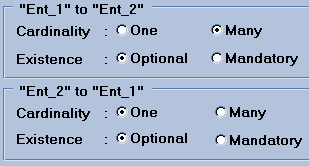
Every relationship is created automatically with the same default properties:
You can change these properties at any time with the appropriate radio buttons. Notice however that you may not set both Mandatory buttons on if both One buttons are on; that is, a "Mandatory One-to-One" relationship is not supported. Furthermore, some choices will be restricted based on the setting of the Is Dependent check boxes.
Many people are confused by the terms Cardinal and Existence, which are neither intuitive nor universal among data modeling methodologies. We find it easier to think of Existence as the minimum number of occurrences allowed (i.e., none versus one) and of Cardinal as the maximum number of occurrences allowed (i.e., one versus more). See also Cardinal and Existence.
If
you create a CDM relationship which is Optional and later change
it to Mandatory or visa versa, the associated PDM properties of
the relationship are incorrectly and inconsistently generated.
To visualize a relationship, vervalize it. Starting from either entity, cover the cardinal symbols attached to that entity (because those represent the relationship from the opposite direction). Now read subject entity - predicate label - "a minimum of" Existence - "and a maximum of" Cardinal - object entity.
For example: "Customer places a minimum of zero
and a maximum of many Sales Order.".

Now reverse: "Sales Order is placed by a minimum
of one and a maximum of one Customer."

 When in
doubt about your relationship diagram, merely push the radio buttons until
you can verbalize it correctly.
When in
doubt about your relationship diagram, merely push the radio buttons until
you can verbalize it correctly.

In a normal relationship between two entities, either entity can be
marked as Is Dependent with the
appropriate check box. These two check boxes are mutually exclusive - checking
one blanks the other - and they are grayed out in recursive or reflexive
relationships where one entity is related to itself.
Changing
identifiers and dependencies in the CDM may result in incorrect primary
key indexes in a generated physical model.
 Use
this to define and attach business rules which
are implemented by or relevant to this relationship.
Use
this to define and attach business rules which
are implemented by or relevant to this relationship.
 Enter
a complete and unambiguous definition of this relationship such that in
the future no one will ever need to look at more than the diagram and this
definition to understand its purpose and function.
Enter
a complete and unambiguous definition of this relationship such that in
the future no one will ever need to look at more than the diagram and this
definition to understand its purpose and function.
 As
always, Annotate is an optional note space for internal, work in
process notations.
As
always, Annotate is an optional note space for internal, work in
process notations.


 These
are the universal basic options.
These
are the universal basic options.
Go to: Instruction outline | Index/Glossary
Copyright © 1995 Applied Information Science International; 20 Jul 1996